Multitech CC9600 Podręcznik Użytkownika
Przeglądaj online lub pobierz Podręcznik Użytkownika dla Elementy podwozia Multitech CC9600. Multitech CC9600 User guide Instrukcja obsługi
- Strona / 86
- Spis treści
- BOOKMARKI


- MR9600 Controller 1
- User Guide 1
- Important Safety Instructions 5
- Table of Contents 7
- 1 Introduction 9
- Introduction 10
- Product Description 10
- LED Indicators 10
- Ethernet Status LEDs 11
- Connectors 12
- Specifications 13
- MR9600 User Guide 14
- 2 Installation 15
- Installation Procedure 16
- Ethernet Cabling 17
- Serial Cabling 17
- 3 Quick Start 19
- MR9600 Quick Start 20
- 4 Operation 22
- Security 23
- File System 23
- Event Files 23
- SNMP Interface 24
- Command Line Interface 24
- Telnet Interface 25
- Web Browser Interface 25
- FTP Interface 26
- 4 Operation 27
- 5 Commands 29
- Parameter Types 30
- Commands Listed by Function 31
- Modem Control 33
- 5 Commands 35
- Operator 36
- Supervisor 37
- Command Reference 38
- [0] A:\MMM # haltsys 52
- [1] A:\MMM # ping 192.168.4.7 55
- Example: 59
- [0] A:\MMM # resumesys 61
- Resume processing 61
- Error Messages 72
- 6 Solving Problems 75
- MR9600 Diagnostic Tests 76
- 6 Solving Problems 77
- Appendix 79
- Firmware 80
- IP address mask parameter, 22 84
- IP address parameter, 22 84
- P/N 82063602 86
Podsumowanie treści
MR9600 Controller User Guide
MR9600 User Guide2 CommPlete Communications ServerIntroductionThis manual describes the field installation and configuration of a Multi-Tech MR9600 Co
1 IntroductionCommPlete Communications Server 3the device cards installed in the CC9600 chassis. When the MR9600 is turned on, the lights go through
MR9600 User Guide4 CommPlete Communications ServerConcentrator LEDsThe upper part of the MR9600 front panel contains 11 status indicators for the Ethe
1 IntroductionCommPlete Communications Server 5Specifications• Motorola MC68360 25 MHz microprocessor• 8 MB of RAM for volatile storage• 2 MB of
MR9600 User Guide6 CommPlete Communications Server
CommPlete Communications Server 72 Installation
MR9600 User Guide8 CommPlete Communications ServerIntroductionThis chapter describes how to install the MR9600 Controller into a CommPlete Communicati
2 Hardware InstallationCommPlete Communications Server 9Ethernet CablingTwo female Ethernet 10Base-T connectors are accessible from the back of the
MR9600 User Guide10 CommPlete Communications Server
CommPlete Communications Server 113 Quick Start
MR9600 User Guide12 CommPlete Communications ServerMR9600 Quick Start 1. Turn off all power to the CommPlete chassis. 2. Using the provided 9-pin
CommPlete Communications Server 13 17. Select option 3, Configuration of RASExpress. 18. Select Server Setup and go to the SNMP Agent option. 19. C
MR9600 User Guide14 CommPlete Communications Server4 Operation
4 OperationCommPlete Communications Server 15IntroductionYou can operate the MR9600 by using the front panel indicators for information (see Chapter
MR9600 User Guide16 CommPlete Communications ServerSNMP InterfaceThe MR9600 can be monitored and controlled by using SNMP through the MultiCommManager
4 OperationCommPlete Communications Server 17Telnet InterfaceTelnet is a standard Internet protocol that allows a remote connection between two syst
MR9600 User Guide18 CommPlete Communications ServerWeb Interface LimitationsThe Web interface does not provide a full management interface. Full manag
4 OperationCommPlete Communications Server 19
CommPlete Communications Server 215 Commands
MR9600 Controller User GuideP/N 82063604, Revision ECopyright © 2000 by Multi-Tech Systems, Inc.All rights reserved. This publication may not be repro
MR9600 User Guide22 CommPlete Communications ServerParameter TypesMany MR9600 commands require a parameter to complete the command. Most of the requir
5 CommandsCommPlete Communications Server 23Commands Listed by FunctionThis section lists the MR9600’s commands alphabetically by the following func
MR9600 User Guide24 CommPlete Communications Serverse, setenviron None Controller configuration utility (a menu driven systemused to set global defaul
5 CommandsCommPlete Communications Server 25online Device Allows the user to perform AT commands with theselected devicerd, remdir Pathname Remove d
MR9600 User Guide26 CommPlete Communications ServerSystemCommand Name Parameters DescriptionA: None Changes the drive the user is to work withB: None
5 CommandsCommPlete Communications Server 27Commands Listed by Security LevelThis section lists the MR9600’s commands by security level. The securit
MR9600 User Guide28 CommPlete Communications ServerOperatorCommand Name Parameters Descriptionabort None Cancels update procedure of modem and T1 card
5 CommandsCommPlete Communications Server 29SupervisorCommand Name Parameters Descriptionboot None Reboots MR9600bpstatus None Displays the rack’s b
MR9600 User Guide30 CommPlete Communications ServerModulesModules are dynamically loaded features that can be loaded when the controller is running wi
5 CommandsCommPlete Communications Server 31!nParameter: Command history index.Description: Repeats the command whose index is indicated by the para
MR9600 User Guide32 CommPlete Communications ServerDescription: Changes the drive that the user is to work withSecurity: GuestExample:[01] A:\# B:[02]
5 CommandsCommPlete Communications Server 33Security: GuestExample:[03] B:\# ByeByeUsername:cat, typeParameter: PathnameDescription: Displays the co
MR9600 User Guide34 CommPlete Communications Servercl, clockParameter: NoneDescription: Displays current date and time (24 hour clock).Security: Guest
5 CommandsCommPlete Communications Server 35dir, lsParameter: Pathname or noneDescription: The dir and ls commands display the contents of the curre
MR9600 User Guide36 CommPlete Communications Servere1cfgParameter: DeviceDescription: Sends E1 configuration information stored in nonvolatile memory
5 CommandsCommPlete Communications Server 374. Framing Format :CRC45. Line Coding :Alternate Mark Inversion (AMI)6. Signal Options :R2 MF7. DNIS-dig
MR9600 User Guide38 CommPlete Communications ServergetcallsParameter: Device or NoneDescription: Displays call traffic for the modems listed in device
5 CommandsCommPlete Communications Server 39getfaultsParameter: Device or NoneDescription: Displays faults for the modems listed in device. If there
MR9600 User Guide40 CommPlete Communications ServerSecurity: GuestExample:[0] A:\MMM # getipIP Address = 199.199.99.9[1] A:\MMM #getmodemsParameter: D
5 CommandsCommPlete Communications Server 41getpriParameter: DeviceDescription: Displays the current status of each PRI deviceSecurity: OperatorExam
CommPlete Communications Server iiiFederal Communications Commission StatementThis equipment has been tested and found to comply with the limits for a
MR9600 User Guide42 CommPlete Communications ServerDescription: Displays the current Rack Type.Security: SupervisorExample:getrackChassis Type: CC2400
5 CommandsCommPlete Communications Server 43Example:[0] A:\ # getslots1 MTRAS96-T1A 22 MT5634HD8 83 MT5634HD8 84 MT5634HD8 8getsubnetParameter: None
MR9600 User Guide44 CommPlete Communications ServergetwritecommunityParameter: NoneDescription: Displays the Write community settings.Security: Superv
5 CommandsCommPlete Communications Server 45lo, logoutParameter: NoneDescription: The logout command ends the session for the current user, and disp
MR9600 User Guide46 CommPlete Communications Server[SecurityFile]NumberOfFile=0[NetWorkDefaults]Default Gateway = 192.168.10.151--More--mountParameter
5 CommandsCommPlete Communications Server 47==== Current device is: Slot 6 Device B ====atl5B1 E1 M1 Q0 R0 V1 X4 &E1 &E4 &E6 &E8 &am
MR9600 User Guide48 CommPlete Communications ServerReply from 192.168.4.7: bytes=32 time=7mspoweroffParameter: Segment NumberDescription: This removes
5 CommandsCommPlete Communications Server 49Chan 13 (3M): Idle Chan 14 (3N): IdleChan 15 (3O): Idle Chan 16 (3P): IdleModem Channels (card 2)Chan 01
MR9600 User Guide50 CommPlete Communications ServerSecurity: OperatorExample:[1] A:\MMM # prisetup 10aUse settings from:1. Use Active Settings (pre-co
5 CommandsCommPlete Communications Server 51Security: SupervisorExample:[1] A:\ # rassetup 13aUse settings from:1. Use Active Settings (pre-configur
iv CommPlete Communications Server
MR9600 User Guide52 CommPlete Communications ServerreadmeParameter: NoneDescription: Displays a summary of the most recent modifications made to the f
5 CommandsCommPlete Communications Server 53Description: This resumes all backplane and SNMP processing in the controller. It is done automaticallya
MR9600 User Guide54 CommPlete Communications ServersetconfigParameter: Pathname DeviceDescription: Associates a configuration file with a particular m
5 CommandsCommPlete Communications Server 55Security: SupervisorExample:[0] A:\ # setip 199.199.199.44IP Address 199.199.199.44 stored[1] A:\ #setpo
MR9600 User Guide56 CommPlete Communications Server12: 000 000 000 000 000 000 000 000[5] A:\# setpollingon 5a[6] A:\# bpstatusBackplane Status: Busy:
5 CommandsCommPlete Communications Server 57settrapParameter: IP AddressDescription: Changes the default trap IP address to the one specified in the
MR9600 User Guide58 CommPlete Communications Server10/30/1996 5:12pmt1cfgParameter: DeviceDescription: Sends T1 configuration information stored in no
5 CommandsCommPlete Communications Server 5901 00/00 02 00/0003 00/00 04 00/0005 00/00 06 00/0007 00/00 08 00/0009 00/00 10 00/0011 00/00 12 00/0013
MR9600 User Guide60 CommPlete Communications ServerGetting T1 Card Info ...T1 Card Status:Wink High Time (ms):220After Wink Time (ms):500PreWink Time
5 CommandsCommPlete Communications Server 61[11] A:\MMM # updatePercent Done = 03%2B Updating2C Updating2D Updating2E Updating2F Updating2G Updating
CommPlete Communications ServervTable of Contents1 Introduction...
MR9600 User Guide62 CommPlete Communications ServerusageParameter: Time in MinutesDescription: Displays how many modems fit the following parameters:
5 CommandsCommPlete Communications Server 63whoamiParameter: NoneDescription: Displays the user ID of the user who is logged on, and the user’s secu
MR9600 User Guide64 CommPlete Communications ServerError MessagesThis section lists the MR9600’s error messages and their possible causes. Many error
5 CommandsCommPlete Communications Server 65ERROR: No history is being maintainedThe command history buffer is empty or not being maintained by the
MR9600 User Guide66 CommPlete Communications Server
CommPlete Communications Server 676 Solving Problems
MR9600 User Guide68 CommPlete Communications ServerIntroductionThis chapter provides information needed to identify and fix problems with the MR9600.
6 Solving ProblemsCommPlete Communications Server 69Test c Clears segment 1 modems OOS.Test d Resets segment 1 modems.
MR9600 User Guide70 CommPlete Communications Server
CommPlete Communications Server 71Appendix
vi CommPlete Communications Server6 Solving Problems...67In
MR9600 User Guide72 CommPlete Communications ServerAppendix A - Updating the MR9600 ControllerFirmwareAs part of Multi-Tech Systems’ continuing effort
CommPlete Communications Server 73Index
MR9600 User Guide74 CommPlete Communications Server## character, 17110Base-T connector, 5AASCII text files, 33CCC9600 chassis, 2, 3, 8, 9, 16, 36, 72c
IndexCommPlete Communications Server 75quit, 52rassetup, 52rasstatus, 53rd, 53readme, 54remdir, 53ren, 54rename, 54rendir, 54reset, 18, 54resumesys, 5
MR9600 User Guide76 CommPlete Communications Servertrap address, 59IP address mask parameter, 22IP address parameter, 22LLED indicators, 3, 4, 5, 72Mm
P/N 82063602
CommPlete Communications Server 11 Introduction
Więcej dokumentów dla Elementy podwozia Multitech CC9600

Powiązane produkty i podręczniki dla Elementy podwozia Multitech CC9600
 (52 strony)
(153 strony)
(52 strony)
(153 strony)
Konica Minolta bizhub C3850 podręczniki
Instrukcje obsługi i podręczniki użytkownika dla Drukarki Konica Minolta bizhub C3850.
Dostarczamy 14 pdf podręczników Konica Minolta bizhub C3850 do pobrania za darmo według typów dokumentów: Instrukcja Użytkownika

Konica minolta bizhub C3850 Instrukcja Użytkownika (22 strony)
Marka: Konica-minolta | Kategoria: Printers | Rozmiar: 0.44 MB |


Konica minolta bizhub C3850 Instrukcja Użytkownika (168 strony)
Marka: Konica-minolta | Kategoria: Printers | Rozmiar: 1.24 MB |
Spis treści
22
31
48
59
103
135
153
153
154
155
156
159

Konica minolta bizhub C3850 Instrukcja Użytkownika (70 strony)
Marka: Konica-minolta | Kategoria: Printers | Rozmiar: 2.21 MB |

Konica minolta bizhub C3850 Instrukcja Użytkownika (72 strony)
Marka: Konica-minolta | Kategoria: Printers | Rozmiar: 0.80 MB |
Spis treści

Konica minolta bizhub C3850 Instrukcja Użytkownika (86 strony)
Marka: Konica-minolta | Kategoria: Printers | Rozmiar: 1.39 MB |
Spis treści
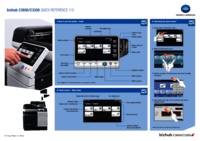
Konica minolta bizhub C3850 Instrukcja Użytkownika (3 strony)
Marka: Konica-minolta | Kategoria: Printers | Rozmiar: 4.70 MB |
Spis treści
Konica minolta bizhub C3850 Instrukcja Użytkownika (67 strony)
Marka: Konica-minolta | Kategoria: Printers | Rozmiar: 1.43 MB |
Spis treści
Konica minolta bizhub C3850 Instrukcja Użytkownika (105 strony)
Marka: Konica-minolta | Kategoria: Printers | Rozmiar: 3.47 MB |
Spis treści
15
27
30
33
47
50
52
79
95
95
104

Konica minolta bizhub C3850 Instrukcja Użytkownika (82 strony)
Marka: Konica-minolta | Kategoria: Printers | Rozmiar: 4.97 MB |
Spis treści

Konica minolta bizhub C3850 Instrukcja Użytkownika (3 strony)
Marka: Konica-minolta | Kategoria: Printers | Rozmiar: 1.44 MB |

Spis treści

Konica minolta bizhub C3850 Instrukcja Użytkownika (70 strony)
Marka: Konica-minolta | Kategoria: Printers | Rozmiar: 2.21 MB |
Spis treści

Konica minolta bizhub C3850 Instrukcja Użytkownika (70 strony)
Marka: Konica-minolta | Kategoria: Printers | Rozmiar: 2.22 MB |

Spis treści
Konica minolta bizhub C3850 Instrukcja Użytkownika (168 strony)
Marka: Konica-minolta | Kategoria: Printers | Rozmiar: 1.23 MB |
Spis treści
12
12
22
48
59
123
135
144
153
153
154

Konica minolta bizhub C3850 Instrukcja Użytkownika (70 strony)
Marka: Konica-minolta | Kategoria: Printers | Rozmiar: 2.21 MB |

Spis treści
Więcej produktów i instrukcji dla Drukarki Konica Minolta
| Modele | Rodzaj dokumentu |
|---|---|
| bizhub PRESS C7000P |
Instrukcja Użytkownika
Konica Minolta bizhub PRESS C7000P Manuale d'uso [en] ,
28 strony
|
| IC-402 |
Instrukcja Użytkownika
Konica Minolta IC-402 Manuale d'uso,
88 strony
|
| bizhub C31P |
Instrukcja Użytkownika
Konica Minolta bizhub C31P Manuale d'uso [en] ,
14 strony
|
| IC-402 |
Instrukcja Użytkownika
Konica Minolta IC-402 Manuale d'uso,
96 strony
|
| bizhub PRO C500 |
Instrukcja Użytkownika
Konica Minolta bizhub PRO C500 Manuale d'uso,
20 strony
|
| bizhub PRO C500 |
Instrukcja Użytkownika
Konica Minolta bizhub PRO C500 Manuale d'uso,
24 strony
|
| bizhub 284e |
Instrukcja Użytkownika
Konica Minolta bizhub 284e Manuale d'uso [en] ,
186 strony
|
| IC-402 |
Instrukcja Użytkownika
Konica Minolta IC-402 Manuale d'uso,
6 strony
|
| magicolor 4650EN |
Instrukcja Użytkownika
Konica Minolta magicolor 4650EN Manuale d'uso,
282 strony
|
| bizhub C10 |
Instrukcja Użytkownika
Konica Minolta bizhub C10 Manuale d'uso [en] ,
244 strony
|
| bizhub C454e |
Instrukcja Użytkownika
Konica Minolta bizhub C454e Manuale d'uso,
184 strony
|
| bizhub C252P |
Instrukcja Użytkownika
Konica Minolta bizhub C252P Manuale d'uso,
536 strony
|
| bizhub PRESS C8000 |
Instrukcja Użytkownika
Konica Minolta bizhub PRESS C8000 Manuale d'uso,
30 strony
|
| bizhub PRO 1200 |
Instrukcja Użytkownika
Konica Minolta bizhub PRO 1200 Manuel d'utilisation [en] ,
43 strony
|
| PagePro 1350W |
Instrukcja Użytkownika
Konica Minolta PagePro 1350W Manuale d'uso,
82 strony
|
| bizhub PRO C1060L |
Instrukcja Użytkownika
Konica Minolta bizhub PRO C1060L Manuale d'uso,
72 strony
|
| bizhub PRESS C1100 |
Instrukcja Użytkownika
Konica Minolta bizhub PRESS C1100 Manuale d'uso,
72 strony
|
| bizhub 601 |
Instrukcja Użytkownika
Konica Minolta bizhub 601 Manuale d'uso,
3 strony
|
| bizhub C250 |
Instrukcja Użytkownika
Konica Minolta bizhub C250 Manuale d'uso,
480 strony
|
| BIZHUB 223 |
Instrukcja Użytkownika
Konica Minolta BIZHUB 223 Manuale d'uso,
298 strony
|
© 2020, manymanuals.pl. Wszelkie prawa zastrzeżone. | 0.032 s |
 Manymanuals.com
 Manymanuals.de
 Manymanuals.fr
 Manymanuals.it
 Manymanuals.pl
 Manymanuals.cz
 Manymanuals.es
 Manymanuals-pt.com
Komentarze do niniejszej Instrukcji